Devon Dundee

Writing about things that matter (to me)

  • Blog
  • About
  • Archive
  • RSS
  • Social
  • Contact

On Turning 30

July 06, 2022 by Devon Dundee

Yesterday was my 30th birthday. I wasn’t sure how I’d react to waking up and no longer being in my 20s; honestly, I feel about the same. It’s certainly a milestone, but in my eyes, it’s a positive one.

It’s also a great opportunity to reflect on where I’m at 30 years into my time on earth. The past decade has been full of ups, downs, and big changes. I graduated college, moved to Texas for a couple of years, moved back home to work at the church, finished seminary, met the love of my life, married her, built a house, adopted a dog, and crafted a fulfilling existence with my little family.

All of this is to say I’m incredibly thankful for my life and the people in it. I am so blessed to be where I am today. It’s been a great 30 years so far; God willing, here’s to many more.

July 06, 2022 /Devon Dundee
Comment

The Many Benefits of Indie Apps

June 13, 2022 by Devon Dundee

Over the past few months, I’ve been writing about new apps that have become a part of my daily life. I’m not one to change up my routine offhandedly. It takes a lot to get me to try something different, and even more for me to stick with it. Which is why I’m so impressed with these apps that have embedded themselves into my life and become so important to me.

There’s one characteristic all of these tools have in common that you might have noticed: They’re all indie apps. That means they are created by independent app developers, not big companies. Every app I’ve featured on my site this year has come from developers working on their own to support themselves through the applications they create.

That’s been a purposeful decision on my part. I made a conscious choice a while ago to follow people and websites that feature independent app developers. Sources like MacStories, Indie Dev Monday, and Indie Apps Catalogue are great for discovering new tools by creators I’ve never heard of. And by following indie developers and those who support them on Twitter, I’ve found even more ways to keep up with what’s happening in this space. It’s been so much fun and exposed me to a treasure trove of useful apps.

There are a lot of reasons why I’ve chosen to focus on indie apps when looking for something new, and I’d like to share a few of them.

First of all, indie apps tend to be well and uniquely designed. They aren’t generically built for a bunch of different platforms, and they aren’t designed by committee. Rather, they are crafted by individuals who put a lot of time and intentionality into making them. Not only do they look great; they work really well, too.

There are thousands of apps out there, and you can probably find dozens that accomplish any given task. To find an app that not only does what you want it to do but also connects with you and makes you want to use it, though—that’s something special. And it’s something I’ve found indie apps are especially good at.

Indie developers tend to tackle problems that are personal to them. They create apps that they are passionate about, and their passion translates into a good user experience. I choose to use the apps I do because they feel like they were made for me. They mesh with the way my brain works, and that comes from the way they’re designed.

Indie apps also tend to be good platform citizens, which is very important me. It’s a tad ironic, but I’ve found that the smallest developers with the least resources actually invest the most in making their apps as useful and versatile as possible for their users.

That means they include basic features like share sheet extensions, drag-and-drop, and split screen support on iPads. It also means they offer Shortcuts actions and Home screen widgets so that users can interact with them in the way they prefer. Some even go so far as to create Apple Watch versions (no small feat!), which I find really fun and useful. I take advantage of these platform features more because my favorite apps support them.

Apple offers all kinds of great system options that developers can use to make their apps better and make users love their devices more. I’ve found that indie devs tend to lean into these features, and their apps are better for it.

I’ve also found customization to be a great benefit of using indie apps. Whether it’s changing the screen tint color or adjusting how the app actually works to fit you, these apps give you options and settings—not too many, but just enough—that allow you to make them your own. The same can’t be said of every app.

The pace of updates on indie apps is also just incredible. I’ve started checking my App Store updates tab daily because the apps I love are being constantly refreshed with new features and refinements. If you’re the type of person who likes to use all of the latest OS features as soon as they’re released, your best bet is to invest in indie apps, because their developers are always the first to incorporate those updates. It’s fun to always have something new to try in the apps you love.

Finally, the relationships you can build with the developers of indie apps are just so fulfilling. They’re always so welcome to feedback, and they actually respond to you! Sometimes, your ideas even become inspiration for new features down the line. It’s so much more enjoyable to use software from independent app developers rather than faceless corporations.

It feels good knowing that the money you spend on apps is going to independent developers, too. I’ve found the app subscription model that many indie devs use to be the perfect setup: I pay a reasonable amount every year to support the developer’s work, which allows them to provide for themselves and keep making the app better. Everyone wins, and it feels like I’m directly connected to the people making my favorite tools.

That alone is enough of a reason to support indie developers in my mind. All the other stuff is just a bonus. But taken together, these reasons make indie apps so much more compelling to me than any of the other options out there.

All of my favorite apps are indies, and they make my life so much better. If you haven’t looked into the world of independent developers and their apps lately, I suggest you give them a try. You won’t regret it.

Here are a few of my favorite indie apps to start off your search:

  • OpenBudget, a personal finance app from Khan Winter
  • Sofa, a downtime organizer by Shawn Hickman
  • Structured, a day planner from Leo Mehlig
  • Good Sudoku, my favorite puzzle game from Zach Gage
  • Awesome Habits, a habit tracker from Michal Tuma
  • Slipity, a powerful presentation app from Josiah Oslund
  • Everlog, a journaling app from Wessley Roche
  • Mela, a recipe manager from Silvio Rizzi
  • Play, a YouTube watch later app from Marcos Tanaka

There are so many great indie apps out there. These are just a few to get you started, so be sure to go out and find some for yourself! And if you find something amazing, please don’t hesitate to send it my way. You never know when you might find your next favorite app.

June 13, 2022 /Devon Dundee
technology, indie apps
Comment

Play

May 05, 2022 by Devon Dundee

A very unexpected addition to my digital life lately has been Play by Marcos Tanaka. Available on iPhone, iPad, Mac, and Apple TV (🤩), Play is a tool for saving YouTube videos to watch later and syncing your queue across devices. And it is excellent.

When I first heard about Play in the Club MacStories Discord and had the opportunity to beta test it, I assumed it wasn’t for me. I don’t watch a ton of YouTube videos, so the Watch Later playlist built into the service has always served my needs just fine. But a series of events not long after the app’s official release changed my mind.

First, I started using a Safari extension called Vinegar by Zhenyi Tan. Vinegar replaces YouTube’s video player with Apple's built-in video player which, among other things, enables picture-in-picture and background audio playback. Once I found this extension, I stopped watching videos in the YouTube app and started watching in Safari.

So at that point, I was just using the YouTube app to manage my Watch Later queue. That’s when I decided to give Play a second look, and it just so happened that one of the app’s first major additions after its release was the option to open YouTube videos in Safari rather than the YouTube app. This made Play the perfect way to manage my watch later queue and, combined with Vinegar, it gave me a much better YouTube experience than I had with the official app. I'd call this my ideal YouTube-watching setup.

That’s just the tip of the iceberg, though. Since I’ve switched over to using Play, I’ve dug into many of its features and found them to be really helpful. It’s not only a great way to keep track of videos I want to watch, but also videos I’ve already watched in case I want to go back and look at them again.

But before we get too into the weeds, let me break down the basics: At its core, Play is just a list of YouTube videos that you’ve imported. You can import a video by copying its URL and pasting it into the app’s Add Video screen, by dragging a YouTube link from another app into Play, or via the share sheet (my preferred method). When importing a video, the app will save all of its metadata including thumbnail, title, channel, and length. This data is really useful down the line.

So you import videos into your Play queue, but then you want to watch them, right? When you tap on a video in the list, the app will present you with all of its details as well as a button to watch it. Once you’ve watched a video, it no longer shows up in your main video list but still remains in the Watched section in case you want to go back to it later.

You can organize your video library in Play with tags. For example, I watch a lot of tech videos on YouTube, but I also like to check out trailers. By creating one tag for tech videos and another for trailers, I can keep those videos separate from each other when I’m browsing my queue.

My video library in Play.

But videos don’t have to be tagged manually, and that’s where metadata comes in. In Play’s settings, you can create rules to automatically tag videos when you import them, the same way your email app might automatically flag certain messages in your inbox. If I import a video with the word “iPhone” in the title, Play knows to add the tech tag to it. This saves me a ton of work organizing my library.

Auto-tagging rules can be set based on words in a video’s title, the channel a video comes from, or video length. Multiple rules can even be combined, so you can have a separate tag for long cooking videos and another for short videos you can watch quickly. The possibilities are endless, and auto-tagging does a lot of the work for you.

As you can see, Play isn't just about keeping a list of videos to watch. It's a comprehensive tool for importing, organizing, and watching all of your favorite YouTube videos. And it does its job beautifully, but there are some nice extras that make the app even more of a joy to use.

Play’s widgets make it easy to see what’s in your queue from your home screen. It’s fun to have a little stack of video thumbnails that I can tap into anytime. Widgets can show your entire queue or just videos from a particular tag.

The app is endlessly customizable as well. You can change the accent colors of Play’s widgets and the app itself to fit whatever color scheme you prefer. As I mentioned above, you can change where you want your videos to play, whether it be in the YouTube app or in a browser. And you can adjust the way the app handles and displays (or hides) watched videos in your queue. I like apps that I can tweak to work just the way I want them to, and Play is definitely one of those apps.

It's also constantly growing. Even though Play is relatively new, it's received a bunch of updates already, including a whole new user interface on iPhone and iPad that's just stellar. I also really appreciate the addition of an Apple TV app to Play’s offering. Any video is better on the big screen, so it’s nice that you can pull up your queue on the Apple TV and jump right in to watching.

The one thing I’d like to see added to Play is background syncing of my video library. When I import a video via the share sheet, I have to explicitly open the app to ensure my video syncs up to the cloud. (This problem is a little bit easier to deal with thanks to Play's Shortcuts support and this basic shortcut I made to simplify the process.)

But even then, the app doesn't sync in the background on my other devices. This means that widgets on my various devices are often out of sync, so I always have to open Play to make sure I've got the latest data. I can't imagine background syncing is a trivial feature to add, but I think it would be a worthy addition and make Play perfect in my eyes.

I'm really thankful I decided to give Play a try. I don't see myself as a YouTube power user, but even for the relatively few videos I watch, the experience is much nicer thanks to this app. If you like to watch YouTube from time to time but don't have a good system for saving videos for later, I highly recommend checking this one out.

Play is available on the App Store for $2 as a universal purchase for iPhone, iPad, Mac, and Apple TV, with Family Sharing included.

May 05, 2022 /Devon Dundee
technology, indie apps
Comment

Finding Room In My Life for the Mac Again

April 25, 2022 by Devon Dundee

How we relate to our technology changes over time. One thing that’s always been in flux for me is the way I divide up my computing life between the traditional Mac platform and the relatively newer world of the iPad. Honestly, that balance has always been a bit murky.

Part of that murkiness may stem from the fact that, unlike many Apple fans, I didn’t have a years-long history with the Mac before being introduced to tablet computing on the iPad. In fact, both platforms came into my life at roughly the same time.

In the spring of 2010, my parents gave me a MacBook Pro as a gift for my high school graduation. (Thanks, Mom and Dad!) Then that summer, I took some of the money generously given by family and friends as graduation gifts and bought the first-generation iPad that was just starting to take the world by storm. The two devices have gone hand-in-hand from the beginning for me.

They’ve fulfilled different roles in my life at different times. Originally, the Mac was my main computer that I carried with me, and the iPad stayed at home for entertainment. At one point, my MacBook’s battery got so bad that it was relegated to a desktop, and I took an iPad mini with me everywhere I went. Still, I did the bulk of my “real work” on the Mac at home.

About five years ago, though, something shifted. I picked up an iPad Pro as a treat for finishing grad school, and it instantly became my favorite device ever. I started writing on it, designing with it, even editing video and audio on it. Katherine and I planned our wedding and the construction of our house with it. I loved that thing, and it got me deeply invested in the iPad platform in a way I never had been on the Mac.

The iPad has been my main computer ever since. And as its presence in my computing life grew, the Mac’s began to shrink.

Over time, I started to view the Mac as a necessary evil in my life, only to be used when I had no other choice. There are a couple of important tasks I do at work that still aren’t possible on an iPad, and so I never stopped using the Mac completely. But as I got more and more accustomed to the iPad platform, I found myself becoming increasingly frustrated when I had to use a Mac. It wasn't as responsive or reliable as my primary computer, and the experience simply wasn't as good.

I didn’t do this on purpose, but eventually, I came to develop very negative feelings towards the Mac and avoided it as much as possible. The iPad was the device for me.

It was honestly easy to justify these feelings a few years ago. We all know the Mac went through a rough patch for a while, and that just happened to coincide with my transition to the iPad. Every stutter, every restart, every beach ball was just another reason for me to move as much of my workflow as possible away from the Mac, and so I did.

I sat by and watched the Mac's Apple Silicon transition from afar. The M1 chip made its way into my life through the 2021 iPad Pro, and it's been fantastic. Even after seeing how good the M1 was, though, I still didn't feel the need to try an Apple Silicon Mac. The iPad was my chosen platform, and the new chips weren’t enough to convince me.

But as more and more people I know transitioned to Apple Silicon Macs and sang their praises, I started to wonder if maybe I wasn't giving the Mac a fair chance. After all, I was comparing an iPad running the newest Apple chip to Intel Macs that were at least a couple of years old. It wasn't an even fight.

I also started to wonder if my negative feelings towards the Mac might inhibit me from staying up on the latest software and trends, especially with all the cool stuff that Shortcuts users are coming up with on the Mac platform. Being on the iPad all these years made me feel like I was on the cutting edge, but suddenly, it felt like I was being left behind.

Maybe FOMO isn't the best reason to make these kinds of decisions, but it played a part in inspiring me to revisit the idea of using a Mac in my personal life for the first time in years. And once I was open to the idea, it made a lot of sense. It’s clear that Apple is invested in the Mac for the long run (something that wasn’t a given just a few years ago), so it’s probably not a platform I should just write off.

So I decided I needed a Mac in my life again. Then I just had to decide which one was right for me.

The answer came during Apple's Peek Performance event last month. After hearing about the incredible power of the Mac Studio and the revelation from John Ternus that the Apple Silicon transition was nearly over, I came to a realization: As mesmerizing as all of these high-end M1 variants are, I don't need anything more robust than the baseline M1 chip. It's plenty powerful enough to handle the tasks I do day-to-day; going for anything more would just be wasteful.

I ended up going with the simplest solution: the iMac. It's got everything I need included in the box. It's a desktop, so I don't have to worry about it going dead if I don't use it for a stretch of time. It's a computer that can be easily shared between myself, my wife, and anyone else who might be in our home and in need of a computer. And the design of the Apple Silicon version is downright stunning.

The iMac was the perfect solution; it just took me the entire Apple Silicon transition to realize it.

Thankfully, getting ahold of one wasn't too difficult since they’ve been in production for nearly a year now. On the same day so many day-one buyers were eagerly unboxing their Mac Studios, I was setting up my very own iMac in my living room, where it's resided for the past month.

I've been impressed by it so far. The design of the iMac feels cutting-edge the way the iPad Pro did back in 2018. Using macOS on Apple Silicon is a much smoother experience than it was on Intel. I'd say it feels a lot like booting up my iPad, and it doesn't hurt that the iMac can run some of my favorite iPad apps, too.

I'm still working out exactly how the iMac is going to fit into my workflow, but I can already tell that it's going to play a much larger role in my daily life than any Mac has in a long time. It really is a joy to use, and though I still prefer the experience of iPadOS for a lot of things, it's undeniable that the iMac is a great device.

Plus, we now live in a world where Apple encourages us to take advantage of both platforms simultaneously. Universal Control couldn’t have come at a more perfect time for me. I love the ability to control both my iMac and iPad Pro with the same keyboard and trackpad, switching seamlessly between the two. It’s the best of both worlds, and it’s made it easy for me to work the way I like.

A couple of years ago, I’m not sure I could have described any Mac as as “great.” That’s more a reflection of my own attitude than the actual products Apple was offering, though the lineup wasn’t in the best shape. But Apple Silicon and the excitement around the transition have opened me up to the possibility that there might actually be room in my life for a Mac again.

The iPad will likely remain my primary computer for a long time to come. I still love it so much. I’m thankful, though, that I can appreciate and take advantage of the power the Mac platform offers as well. It doesn’t have to be either-or; one doesn’t have to be bad for the other to be good. Both are excellent, beneficial, and worth using. I took me a while to realize that truth, but I think my computing life will be better for it.

April 25, 2022 /Devon Dundee
technology
Comment

Structured

March 21, 2022 by Devon Dundee

My schedule is normally dictated by two things: my calendar and my to-do list. The Calendar app on my devices is full of meetings, calls, trips, and events that I have to be present for. Meanwhile, the Reminders app keeps track of tasks I need to complete as well as when they must be done. Together, these appointments and tasks make up the essentials of my routine, ensuring that I’m always where I need to be and that my work gets done.

But then there are things that fall between these two categories: family time, hobbies I’d like to make time for, sleep, and the like. Some people put these things on their calendar using a technique called block scheduling, but I don’t want to bog down my calendar with dozens of events every day. That would stress me out and make it difficult to identify the key appointments that I already have in my calendar.

What I need is something that fills that gap between my calendar and to-do list, a way to loosely map out my time without muddying the waters of what I truly can’t miss. Ideally, this tool would be able to integrate the important information I keep in Calendar and Reminders while supplementing it with information on what I’d like to do when I’m not otherwise committed.

This may seem obvious to some of you, but it took me a long time to figure out that what I’ve been looking for is a day planner. I didn’t realize how badly I needed one until I found Structured by Leonard Mehlig when he was interviewed in an issue of Indie Dev Monday last year.

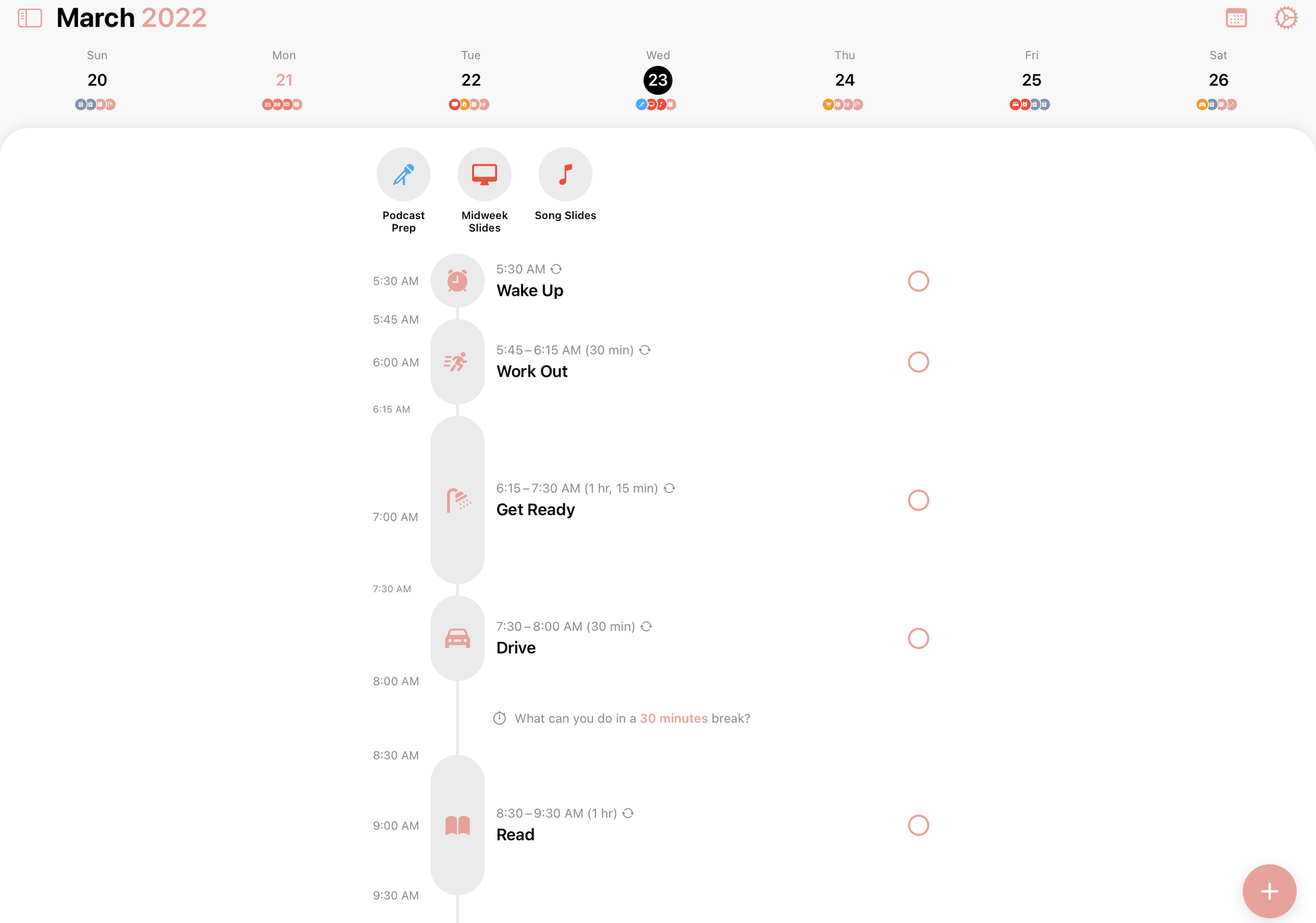
Available on iPhone, iPad, and Mac, Structured is my ideal day planning app. It starts with a simple, blank timeline that you fill in with your wake up time, bedtime, and the things you want to do as the day goes on. Each task is assigned a name, icon, start time, and duration as you add it to your day. The app encourages you to fill in any gaps, though you can always leave some blank space for downtime as well.

The tool’s genius, though, is its integration with Calendar and Reminders. This integration is part of Structured Pro, a $5 one-time purchase, and the features it unlocks are well worth the price. With Structured Pro, you can select any of your calendars and to-do lists to be automatically included in your day plan. This has been so useful for me.

I’ve got a few Reminders tasks at the top of my timeline that need to be done. Better find a place on my timeline to put them!

Whenever I’m planning out a day, I can instantly see which parts of my schedule are already blocked off in my calendar and what I need to get done on that day so that I can plan out the segments of time between appointments. Reminders assigned to a certain time will appear in place on the timeline, whereas reminders set to a day with no time appear at the top of the timeline for that day. Importing of all of this data means I don’t have to switch back and forth between apps. It’s all right there in front of me.

Here’s how that plays out for me on a practical level: Every night before bed, I open up Structured to plan out the next day. At the top of my timeline, I see any tasks imported from Reminders that need to be completed that day. As I scroll down the timeline, I can see all of my Calendar events as well as any open time slots. I edit each of my Reminders tasks with an assigned time and approximate duration to ensure that I make time for them throughout the day, and then I fill in any open time with things I want to do that aren’t already in Calendar or Reminders.

This is exactly what I wanted! I still keep track of my key appointments and tasks in the same apps I’ve always used, and then I can see them all laid out neatly on a timeline in Structured alongside anything else I’d like to do. This approach allows me to go into each day with a plan for how I’m going to accomplish the things I absolutely need to do as well as some time set aside for things I’d like to do. And I know the difference between the two because items imported from Calendars and Reminders are non-negotiable while my Structured tasks can be moved around as needed.

And this only scratches the surface of what the app can do. Every task is color coded to match your calendars and Reminders lists, and Structured tasks can be assigned any color you like so you can quickly scan your timeline and see what’s coming up. Optionally, you can have the app send you a notification when a task in your plan begins or ends so that you stay on track. There are home screen widgets to show the current task in your day plan, how much longer is left on it, and what’s coming up next. And everything syncs between your devices via iCloud. The app is quite feature-rich, and a watch app is even on the way.

I use Structured every day, and I’ve found it so useful. It gives me a boost of confidence to go into each day with a plan for how it will go, and I’ve found that listing out my tasks actually helps me be more flexible as well. If something comes up, no biggie. I know what I can move around to make things work.

That’s not to say the app is perfect. Structured does sometimes struggle with repeating Reminders tasks, either not marking them as complete or marking them as complete multiple times instead of just once. I’ve also run into an issue where my all-day Reminders tasks don’t always stay in place when I put them at a certain time on the timeline. These are issues that the developer is aware of and working on, so I’m confident they’ll be resolved in time.

It’s understandable that Structured has a few rough edges given that it’s an indie app with such an ambitious purpose. I can only imagine the complexities of integrating so deeply with Apple’s default Calendar and Reminders apps and keeping all the information in sync over iCloud. But the more I used Structured, the more value I find in it and the peace of mind that it gives me. It’s rare to come across an app that does exactly what you’ve been wishing for over a long period of time, but that’s exactly the experience I had when I found Structured, and I’m still so impressed by it.

Being intentional with our time is so important, and I’ve found day planning to be a key tool for me in that endeavor. If you’re interested in giving a try, I recommend you download Structured for free and see if it’s right for you.

Thanks for reading! I’ll see you next time.

March 21, 2022 /Devon Dundee
technology, indie apps
Comment
  • Newer
  • Older